1. What the colours mean
Curb Check puts a coloured bar across the top of every car listing as you scroll. There are four states, and that's the whole system.
Green — go see it
Good model year, sane mileage for that specific car, price in your range, nothing alarming in the description.
Amber — check first
Could be fine, could be a headache. Something needs an answer before you drive across town.
Red — walk away
A known bad engine year, mileage well past what this model survives, or a price that only makes sense if something is wrong with the car.
Grey — not a vetted model
Curb Check has no researched data on this one. It isn't a warning. It just means you're on your own for that listing.
Green and amber cars save to your dashboard automatically as you scroll. Reds save only when you open them — so your list stays useful instead of filling up with everything you passed, but a red you actually looked at isn't lost. Grey ones aren't saved.
One more label you'll see on the dashboard: Stretch — a car that's above your budget but close enough that a negotiation could land it. It's not a fourth colour on Marketplace; it's how the dashboard files the almost-affordable ones.
2. Scrolling Marketplace
Open Facebook Marketplace and browse normally. You don't need to click anything to start — the bars appear on their own as listings load.
A small counter sits in the bottom corner of the screen showing how many of each colour you've passed. It's a quick read on whether your search is worth continuing: if you've scrolled two hundred listings and everything is red, your price filter or your radius probably needs widening.
3. Opening a listing
Click into any car and a panel appears alongside Facebook's own listing page. It's the same verdict, with the reasoning shown.
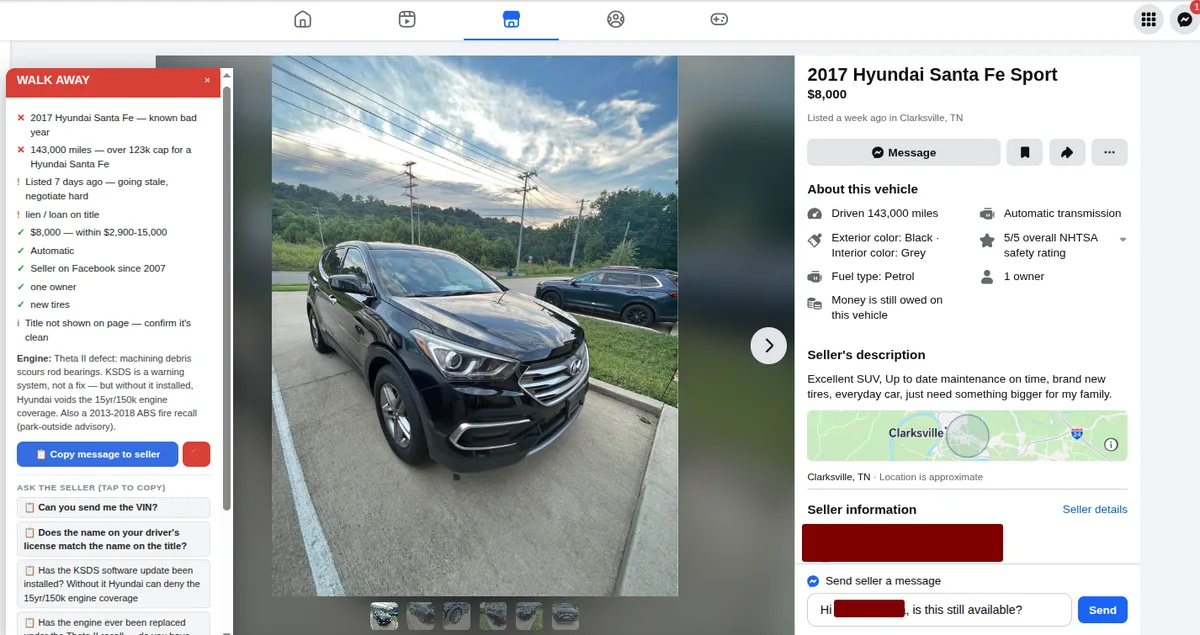
- The checklist
- Each line is one thing that was checked — price against your range, model year against known problem years, mileage against what this particular model tends to survive, transmission, title status. Ticks passed, crosses failed, exclamation marks are worth a question.
- Engine notes
- What's actually known about the engine in that year. This is where you find out that a Theta II has a machining defect that scours the rod bearings, or that a 2010-and-later Lexus V6 is essentially bulletproof.
- Check in person
- Things you can't establish over text. Bring these to the viewing.
Not a verdict, a briefing. A red car isn't necessarily a bad car — it's a car with a known risk you should be paid to accept. Plenty of people knowingly buy a red one at the right price. The point is that you know before you drive out there, not after.
4. Messaging the seller
Copy message to seller puts a complete opening message on your clipboard — a greeting plus the questions that matter for that exact car and year. Click Facebook's Message button and paste.
Underneath, each question also sits on its own. Tap any one to copy just that question, for when a conversation is already going and you only need the next thing.
The questions aren't generic. "Has the KSDS software update been installed?" matters because without it Hyundai can decline the fifteen-year engine coverage — which is worth thousands of dollars and is the sort of thing a seller either answers immediately or doesn't.
5. Your own notes and marks
At the bottom of the panel you can mark a car green, yellow or red yourself, and type a note. This is your opinion, not the tool's, and it always outranks the tool's colour on your dashboard.
Notes save as you type, and they travel. A note typed on a listing shows up on that car's row in your dashboard, and a note added from the dashboard (the + note column) shows up when you open the listing again. Same note, two doors — write it wherever you happen to be.
Use notes for the things no software can know — the seller took two days to reply, the photos are all from the same angle, it's forty minutes away.
6. Your dashboard
Click the Curb Check icon in your Chrome toolbar to open your dashboard. If you don't see the icon, click the puzzle-piece Extensions menu, find Curb Check, and pin it — Chrome hides new extensions there by default.
Every car you've looked at is here, so you can compare them side by side instead of trying to remember which grey Accord was the good one.
The tiles across the top are shortcuts to the cars that need attention — new since yesterday, priced well under market, above your budget but worth a negotiation, conversations you've marked to follow up, and Too cheap: listings more than a third under market, where the price itself is the warning.
Below that you can filter by verdict, by how recently a listing was seen, by price band, and by whether you've marked it. The table sorts by any column.
One button in the top corner rounds it out. Export CSV downloads your entire list as a spreadsheet file that opens straight in Excel, Google Sheets, or Numbers — every car, price, verdict, and note, yours to sort and keep. It's a copy, not a transfer — Curb Check can't load it back in on another computer.
It's all local. This lives in your browser on your computer. There's no account, nothing about your cars is uploaded, and nobody — including us — can see your list. It also means it doesn't follow you to another machine, and uninstalling the extension deletes it.
7. Changing your limits
Right-click the toolbar icon and choose Options, and you can set your budget range and how strict you want the mileage rules to be.
Mileage isn't one number. A Toyota Avalon at 180,000 miles is a normal used car; a turbocharged hot hatch at 180,000 miles is a project. Curb Check works from what each model actually tends to survive, and your setting decides how conservative to be against that.
If everything is coming up red, loosen the mileage tolerance or widen the budget before assuming the market is empty.
8. Trial and payment
You get seven days free. Starting the trial asks for your email and sends a confirmation link — click it and you're unlocked. No payment details are needed for the trial.
After seven days it's a single payment of $29 — no subscription, no renewal.
When the trial ends, the colours keep working and your dashboard still shows what you've collected, but the detail — the engine notes, the questions, the reasoning — is locked until you buy.